
Installation Tutorial
FIRESTICK BY AMAZON
FordStreamzTV App
How to Install FordStreamzTV App on FireStick
Since we are going to sideload the Smart IPTV on FireStick, we must first enable the security option Apps from Unknown Sources in the FireStick settings. Follow the steps below:
1. You need to be on the home screen of FireStick. Select FIND.
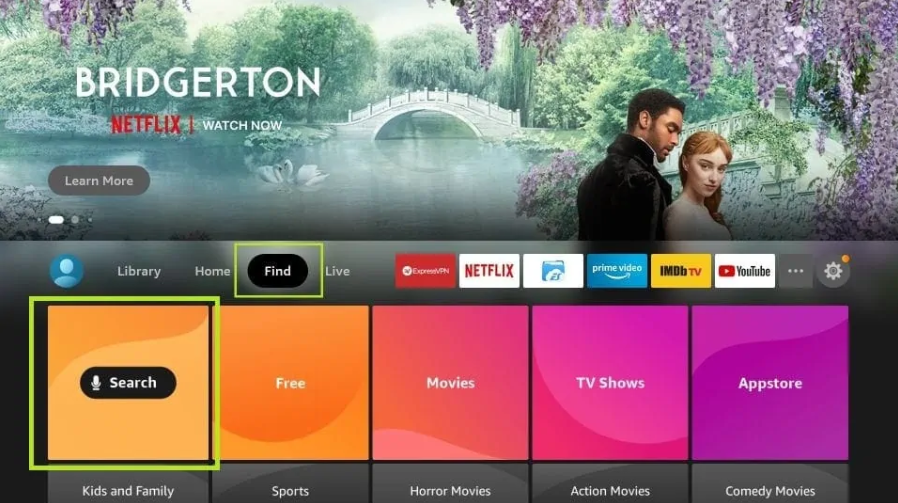
2. Now, click Search.
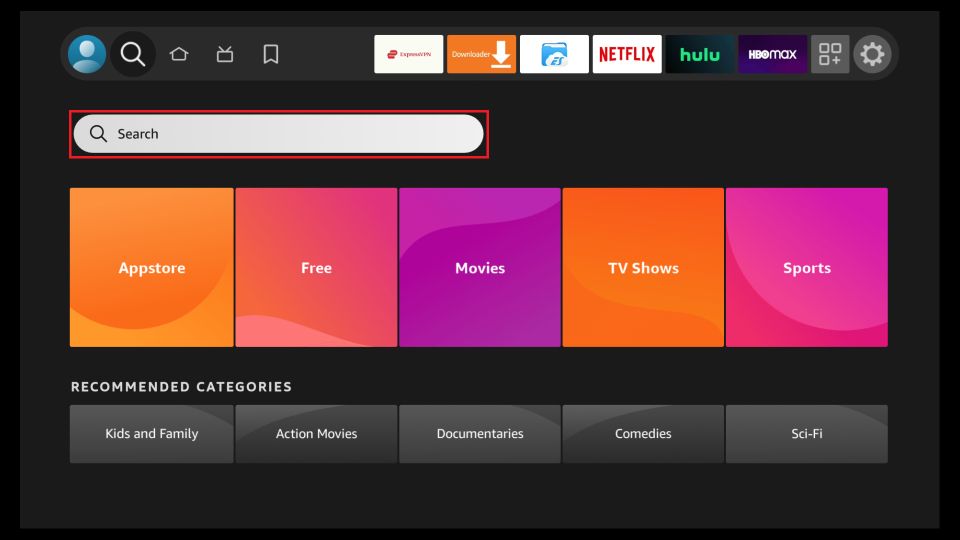
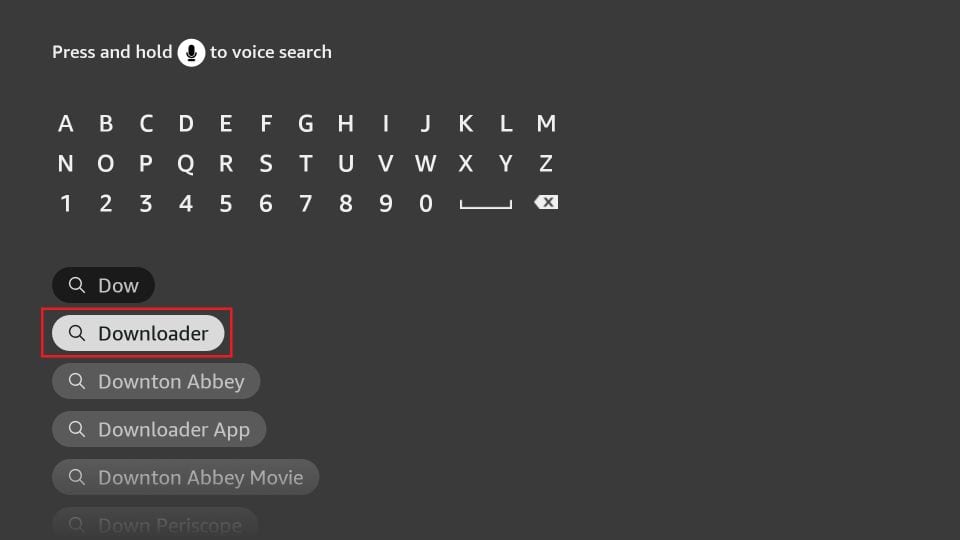
3. In the Search window, search for the app called Downloader. This is the app through which we will sideload Smart IPTV on FireStick. Follow the instructions that appear on the screen and install this app. For the detailed guide, read how to sideload apps on FireStick with Downloader.
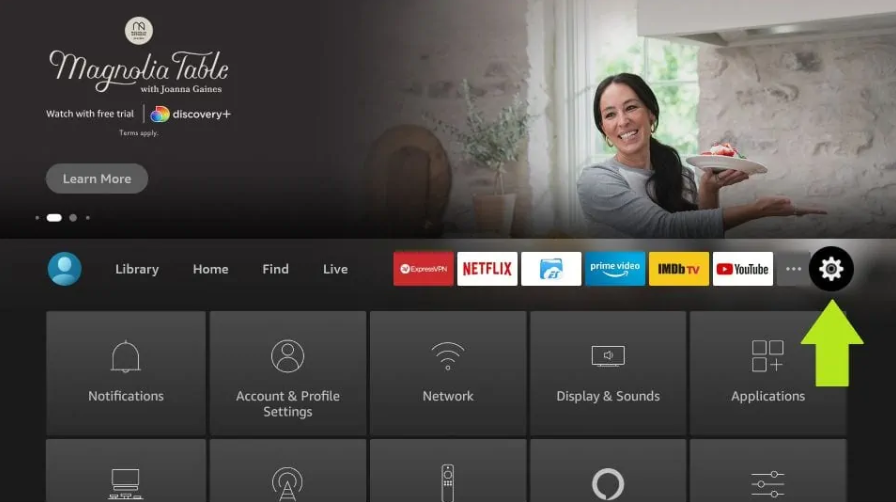
4. After installing the Downloader app, get back to the home screen and select Settings.
5. Within Settings, go to the option My Fire TV and open it.
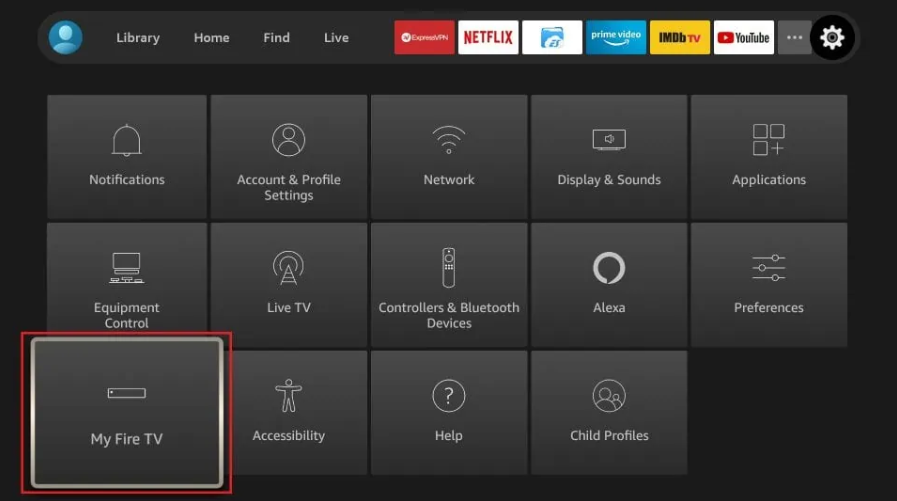
6. Now, the next option you will access is Developer Options.
Now, select Fire TV Stick and click it 7 times to enable Developer Options.
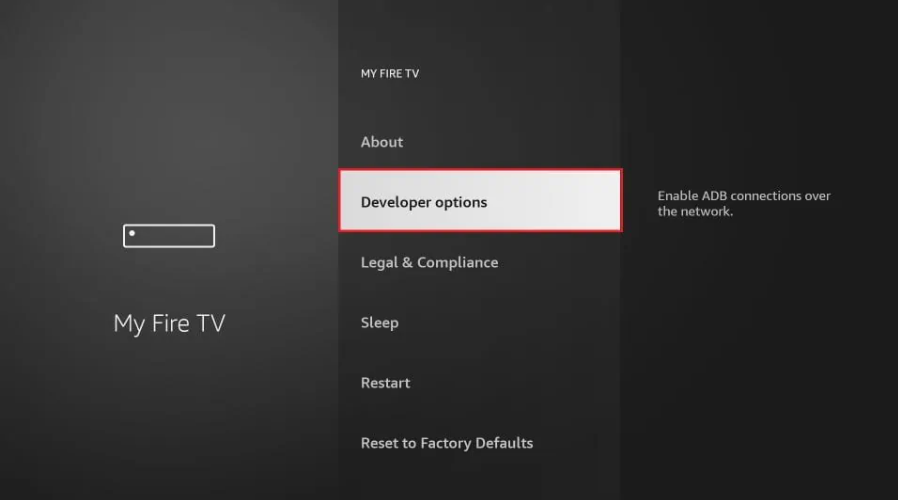
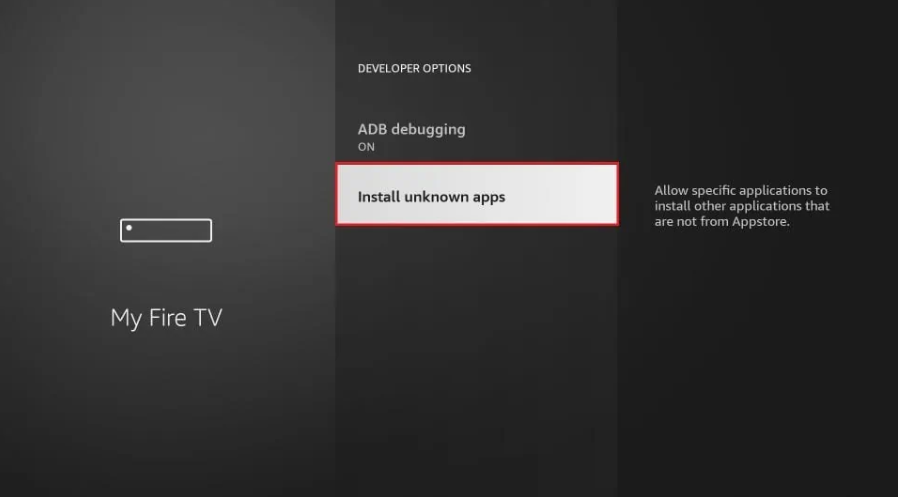
7. On the window that opens next, go ahead and click on Install Unknown Apps.
Note: If you still have the older version of the FireStick interface, click Apps from Unknown Sources.
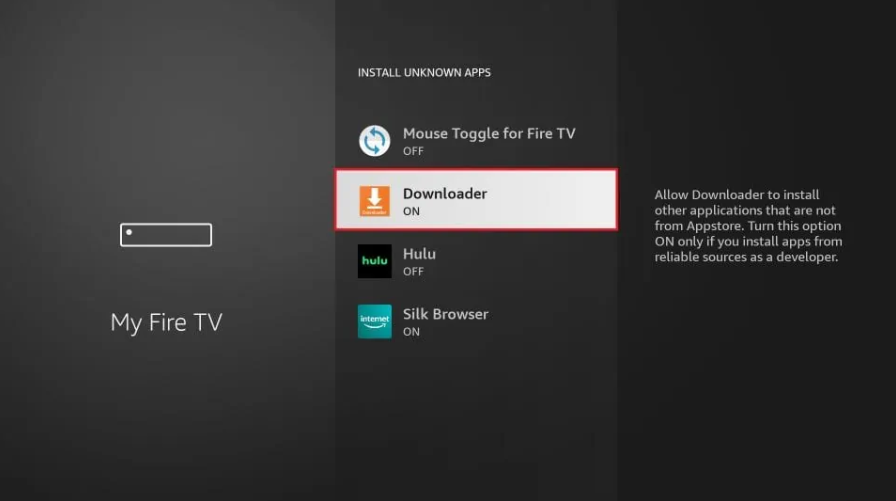
8. Turn the option ON for the Downloader app.
Once you have enabled Apps from Unknown Sources, you may start installing the Smart IPTV app on FireStick. Here are the steps:
9. You may now open the Downloader app. Some prompts will be displayed when you run it for the first time. Dismiss them by choosing the appropriate options. When the following screen of the app appears, click the textbox highlighted in the image below.
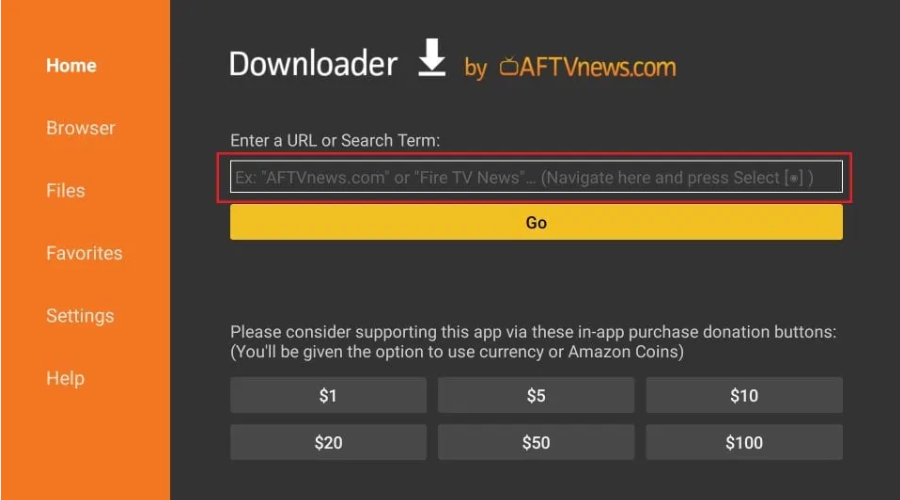
10. Go ahead and enter the following path on this window
⬇Link⬇
fordstreamztv.apk
APK: https://apk.st/CQQUD
IPTV SMARTERS PRO
How to Install IPTV Smarters pro on FireStick
Since we are going to sideload the Smart IPTV on FireStick, we must first enable the security option Apps from Unknown Sources in the FireStick settings. Follow the steps below:
1. You need to be on the home screen of FireStick. Select FIND.
2. Now, click Search.
3. In the Search window, search for the app called Downloader. This is the app through which we will sideload Smart IPTV on FireStick. Follow the instructions that appear on the screen and install this app. For the detailed guide, read how to sideload apps on FireStick with Downloader.
4. After installing the Downloader app, get back to the home screen and select Settings.
5. Within Settings, go to the option My Fire TV and open it.
6. Now, the next option you will access is Developer Options.
Now, select Fire TV Stick and click it 7 times to enable Developer Options.
7. On the window that opens next, go ahead and click on Install Unknown Apps.
Note: If you still have the older version of the FireStick interface, click Apps from Unknown Sources.
8. Turn the option ON for the Downloader app.
Once you have enabled Apps from Unknown Sources, you may start installing the Smart IPTV app on FireStick. Here are the steps:
9. You may now open the Downloader app. Some prompts will be displayed when you run it for the first time. Dismiss them by choosing the appropriate options. When the following screen of the app appears, click the textbox highlighted in the image below.
10. Go ahead and enter the following path on this window: https://www.firesticktricks.com/smarter
Note: You may also use the shortened version of the URL firesticktricks.com/smarter
Click GO
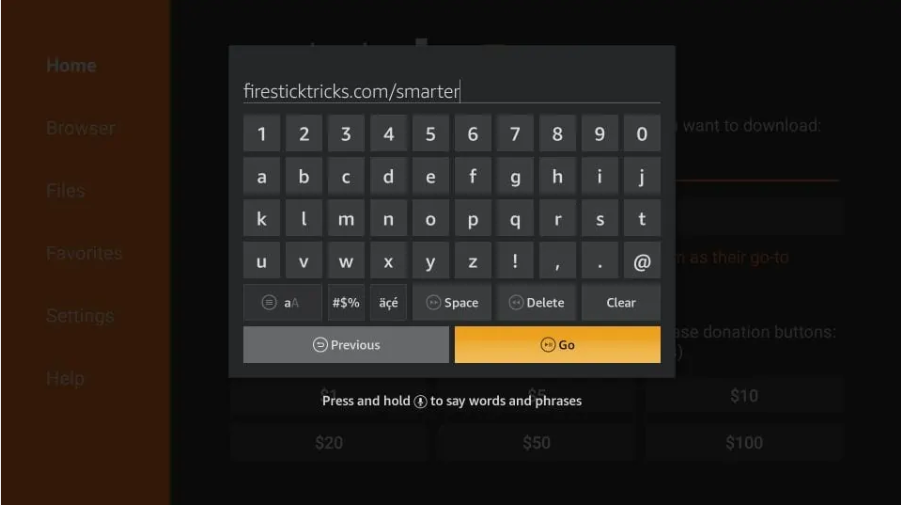
11. Give it a minute or two until the IPTV Smarter is downloaded onto your FireStick device
12. When the download has completed, the Downloader app will run the APK file and the installation will start
Click Install
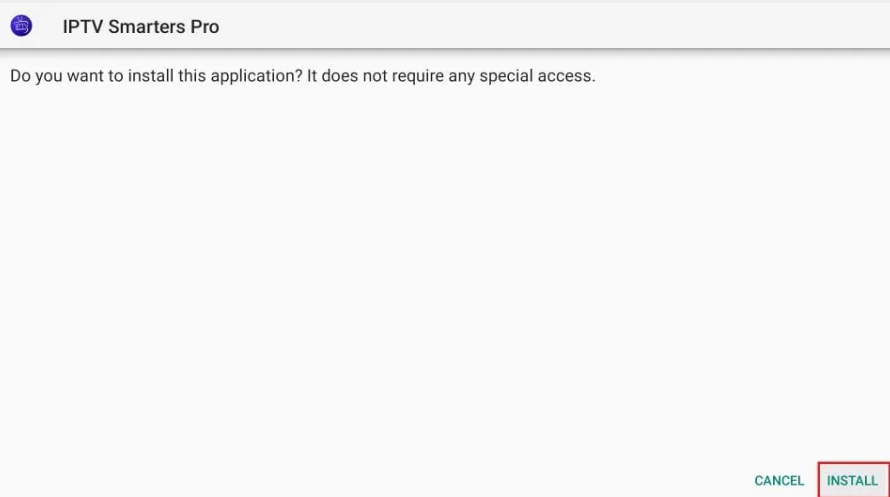
13. Wait for the installation to finish
14. Installation is concluded with the App installed notification
You may now choose to click OPEN and get started with IPTV Smarters
I recommend choosing DONE so that you may first delete the APK file and save some space on the FireStick storage
15. If you clicked DONE above, you will be back on the Downloader interface
Click Delete
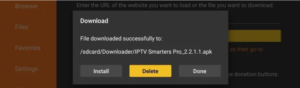
16. Again, click Delete
Great! You now have the IPTV Smarters app on FireStick.
How to use IPTV Smarters on FireStick
As I said before, IPTV Smarters DOES NOT have any channels of its own. It is just a facilitator which lets you stream channels you have access to through the IPTV service providers.
Therefore, to use IPTV Smarters, you must have subscribed to at least one IPTV service.
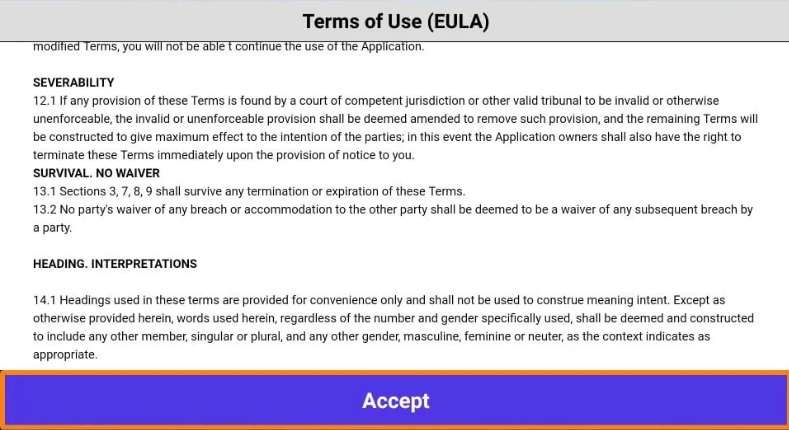
When you run the IPTV Smarters app for the first time, Terms of Use will be the first window. Scroll down and click Accept
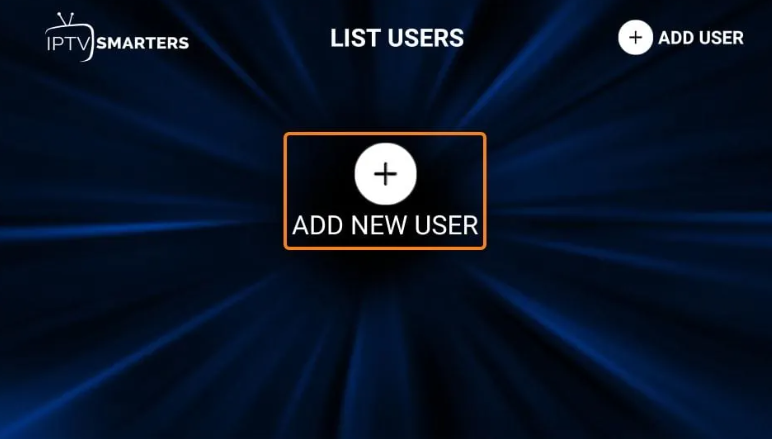
Login with Xtream Codes API
M3U playlist URLs are often long and difficult to type into the app, especially if you are typing with the FireStick remote.
Therefore, I recommend using the Xtream Codes API instead. They are shorter and easier to type.
However, Xtream Codes has been taken down and I am not sure if the API Codes will work any longer
Xtream Codes API is sent to you in your email by your IPTV provider along with your M3U playlist URL. If you haven’t received them, contact your IPTV provider.
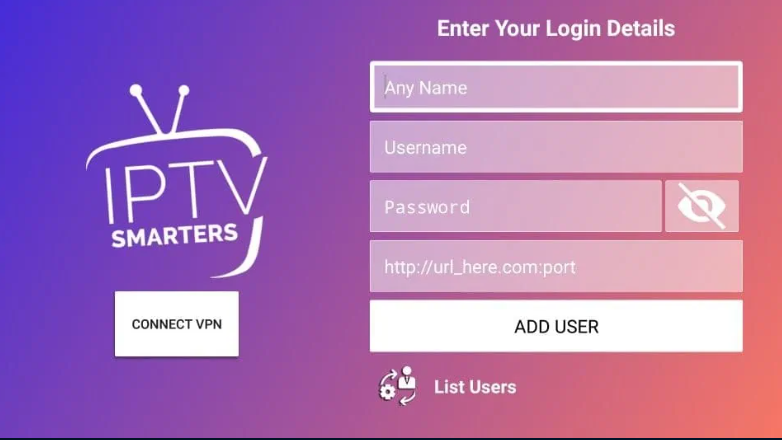
When you click Login with Xtream Codes API here is the window where you can enter your details:
SAMSUNG TV
IPTV SMARTERS PRO
IPTV Smarters Player is considered to be one of the best IPTV players for Samsung Tizen OS, unlike other apps, it comes with the easiest user interface, and its features will allow you to enjoy an enhanced streaming experience in comparison to other IPTV players.
Luckily IPTV Smarters Pro is still available on the Samsung APP store. It will not require you to go through any additional steps to sideload it like Smart IPTV, which is an example of a popular IPTV player for Samsung that got removed without prior notice.
Part-1 Download/install IPTV Smarters from Samsung app store
before starting to search for this app on your device, keep in mind that this app according to the developer is only available on the USA web store and you need to first change your Tv location from the settings in order to find it.
changing your TV location is not that difficult task at all, all you have to do is go to the settings and look for country or location settings, click on it and choose the USA.
After that search for IPTV Smarters Player and click on install
https://play.google.com/store/apps/details?id=com.nst.smartersplayer&pli=1
Part-2: Connect to your IPTV provider
depending on whether you already have a subscription with an IPTV provider or yet to get it, they all send you some links to connect to their servers, in this part I will explain to you how you can use this info to get access to the channels using your IPTV player.
almost all IPTV providers will send you an m3u link, EPG link, and Xtream codes API and IPTV Smarters Player supports them all to properly use this info follow along with the steps below.
1- Open IPTV Smarters
like any other app click on its Icon to open it, you will find it available with the rest of your installed apps.
2- Accept the terms
if you like you can read the full page which is something recommended, but you will not be able to use the app unless you accept the terms, take your time reading them then click accept.
3- Choose Xtream Codes API
in this page you will find many options
- Load Your Playlist Or file URL: ( another way to say m3u)
- Load data from your device: the m3u file not recommended
- Login with Xtream Codes API ( Top Recommended )
- PLay a single stream
choose the Xtream codes API which in my opinion is the best way to connect to your provider server.
4- Fill-in your account info
as I said earlier your IPTV providers will send you some links, most likly an m3u link and an EPG link.
if you don’t see the Xtream Codes with the details don’t worry because you can easily extract it from the m3u link using this method.
the m3u link is always structured like this http://line.iptvdomain.com/get.php?username=XXXXX&password=XXXXX&type=m3u
if you like to get the Xtream Codes break down the link as follows.
- URL: is this part ( http://line.iptvdomain.com )
- Username: as you can tell is the XXXX after ?username=
- Password: the same &password=XXXXX
Note: for the username and password copy only the XXXXX part ****which in your case will be random numbers and letters
after writing everything double check if you made any typos and click on add user.
5- Wait until IPTV Smarters Player downloads all the channels.
this will take only 1-4 minutes depending on your internet speed and how many channels you’re IPTV provider has given you access to.
you will see something like this.
6- Click on live TV
as you can tell IPTV Smarters Pro Interface makes it easy to navigate the content, you have a separate section for live TV and the same for movies and series.
Flix IPTV
Samsung has suspended the app from the Samsung Apps Store. DO NOT uninstall it,
if you want to keep the already installed application working on your TV.
You can manually install the app by using the following options:
Tizen TVs (J/K/M/N/Q/R/T):
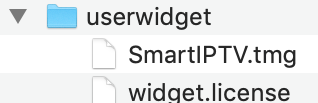
Extract (unzip) the contents of the following Tizen Widget file to the root of the USB drive (FAT32 format) and insert it to your TV’s USB slot. Make sure the userwidget directory is located in the root of your USB drive. The application will appear on My Apps screen among other apps. You can then remove USB flash drive from your TV (except J series).
On J series Tizen TVs, you can try turning off Menu -> Smart Hub -> App Auto Update to avoid losing the application on every TV restart. Otherwise, there is no solution available.
non-Tizen TVs (E/ES/F/H/J4/J52):
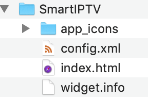
Extract (unzip) the contents of the following Orsay Widget file to the root of USB drive (FAT32 format) and insert it to your TV’s USB slot. The SmartIPTV directory should be located in the root of your USB drive. The application will appear on a Samsung Apps screen among other apps. You can then remove USB flash drive from your TV (not on all TV models).
You can also use Sync server IP address

to install using developer mode.
Important! The application does NOT work on D series or older Samsung TVs.
Playlist Instructions
First, take a look at the following playlist examples below to get the idea about the playlist structure.
M3U playlist example: http://siptv.app/lists/example.m3u
TXT playlist example: http://siptv.app/lists/example.txt (old method)
Using M3U playlist format (.m3u file extension)
The following attributes are also supported in M3U playlists:
- tvg-id – channel code from EPG code table
- tvg-name – channel name from EPG code table
- group-title – channel group
- parent-code – group parent code
- audio-track – ISO 639-1 audio track code (LG only, see codes table)
- tvg-logo – path to the big channel logo, minimum height should be 48px
- tvg-logo-small – path to the small square channel logo, min height should be 48px (works in the latest app versions only)
- timeshift, tvg-rec – timeshift availability for specific channel
ANDROID TV
XCIPTV Player
How to Install XCIPTV Player on Android Devices
1) Unlock your Android device and go to Play Store (Google Play).
(2) Browse for XCIPTV Player in the Google Play Store.
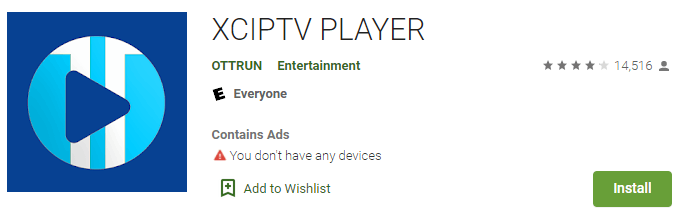
(3) Select Install to install XCIPTV Player on your Android device.
(4) Launch the IPTV player.

(5) You have successfully installed XCIPTV APK on your device!
Enter your IPTV service login credentials and click Sign In when finished.
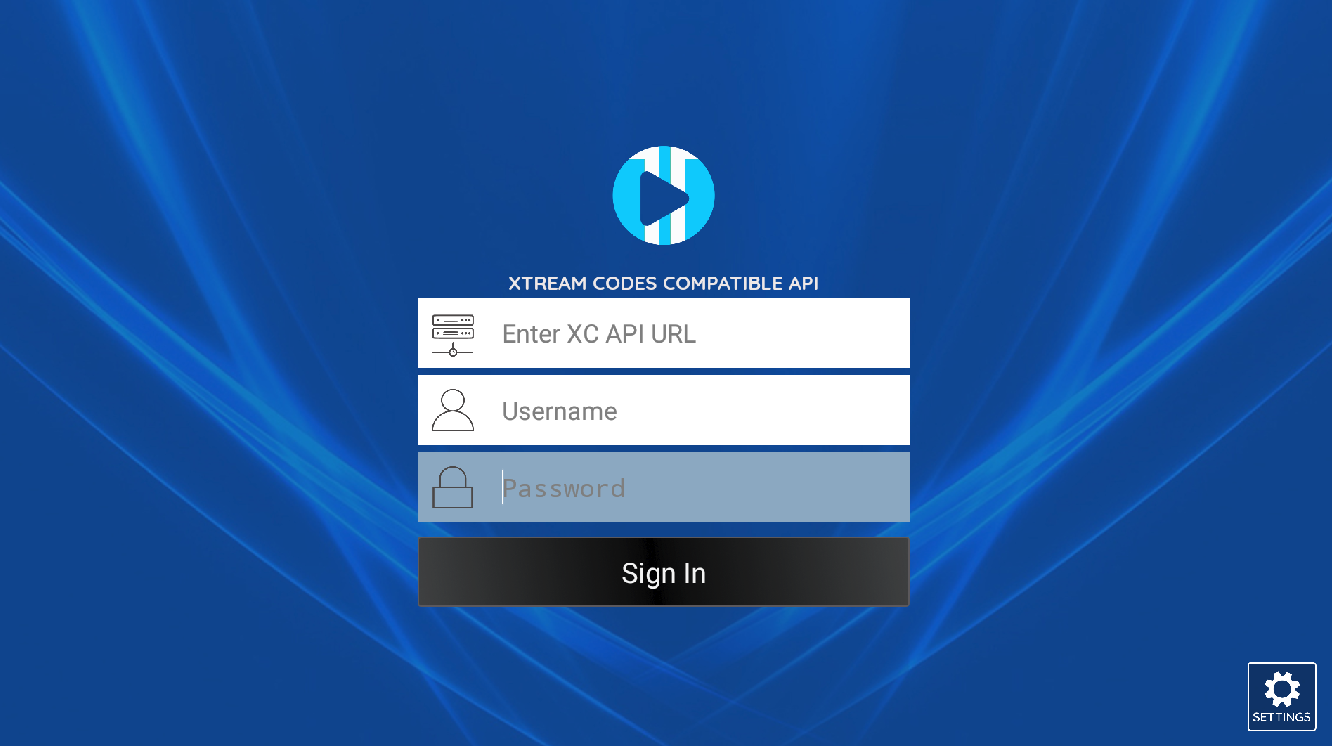
(6) Done! Enjoy

Flix IPTV
Having an Android TV or Box ( this includes TV sticks like MI Box, Firestick…) is the ultimate hardware setup for IPTV because it gives you complete freedom of what IPTV players to use.
IPTV Smarters Pro is in my opinion is the best free IPTV player you can use because it has a simple and great-looking user interface plus it gives many premium features free of charge.
in this article, you will learn how you can install and configure IPTV Smarters pro on your Android TV/BOX to stream IPTV.
WHAT YOU NEED TO HAVE
no matter what devive you’re using there are 3 essential steps you have to follow.
1- Getting an IPTV Subscription: if you haven’t done this yet you can check this article where I shared how to choose the best IPTV provider for your needs.
2- A VPN Subscription: in most cases, it’s not required but it’s highly recommended you can check this guide on what are the best VPN services for streaming IPTV and why you need to use one.
3- Install an IPTV player and connect to your IPTV provider: this is what you will learn in this guide.
FIRST STEP: Install IPTV Smarters Pro on your Android TV
most of the time all you will have to do is search for it on the play store and click install.
but from my experience IPTV players can get removed from the play store ( temporarily or permanently ) which is why I covered also how you can sideload IPTV apps on your device using the downloader app.
first, try to search for IPTV Smarters Pro on the play store if you find it skip the following and go straight to Step two where I covered how you can configure this app.
but if by the time you’re reading this article IPTV Smarters Pro got removed from the play store you can check this guide on how to sideload IPTV Apps on your Android TV using the downloader app.
SECOND STEP: CONFIGURE IPTV SMARTERS PRO ON YOUR ANDROID TV AND CONNECT TO THE PROVIDER SERVER.
What I like most about IPTV Smarters Pro is the onboarding experience which makes it very intuitive and fast.
1- open the app
Search for the app icon on your Android TV Box and click on it to open the app.
2- Accept the terms
Like any other app you will have to accept the terms before using it all you have to do is click ok.
3- Connect using the Xtream Codes API
IPTV Smarters Pro gives you many options to connect to their server the most common ones are the m3u and the Xtream Codes API.
I prefer using the Xtream Codes because it’s much faster, all you have to do is click on Xtream Codes API as shown on the screenshot below.
4- Fill in the info that your provider have sent you.
When you subscribe to an IPTV provider they will send you your account details which basically are a special link with your account user and password to connect to their server.
They can also send the Xtream Codes if not you can extract it easily from the m3u link as shown below.
the m3u link always comes like this.
http ://line.iptvdomain.com/get.php?username=XXXXX&password=XXXXX&type=m3u )
you will notice that this link has a username=XXXXX and a password=XXXXX ( in your case it will be a series of random numbers and letters )
copy and paste them on the Xtream Codes login alongside the server URL which is the first part of the link. http://line.iptvdomain.com
of course, your provider will give you a different link that. so make sure to right the one they gave you and not the one I am writing here.
after filliing the form click add user.
5- Enjoy your Time 😃
after your IPTV player downloads the channels you will see a dashboard like this one where you can browse all the content your provider has given you access to ( Live TV, Movies, Series…)